 Shopify App Store
Country rules
Set a postal-code and house-number rule for each country in Checkout Address Validator for Shopify, or write your own rule as a regular expression.
The Country rules section on the Overview lists the countries you sell to: the countries in your shipping zones that belong to an active market. Each row shows what that country requires, and Custom marks the countries you changed.
If the list is empty, add a shipping zone or a market in your Shopify settings, then reload the page.
The defaults
| Field | Default |
|---|---|
| Postal code | Required where the country's address format requires one. See Postal codes. |
| House number | Required in every country except the ones listed in House numbers. |
Addresses from countries that aren't in the list use the default house-number rule.
Changing a country
- 1
Open the country
Select the country in the list.
- 2
Choose its rule
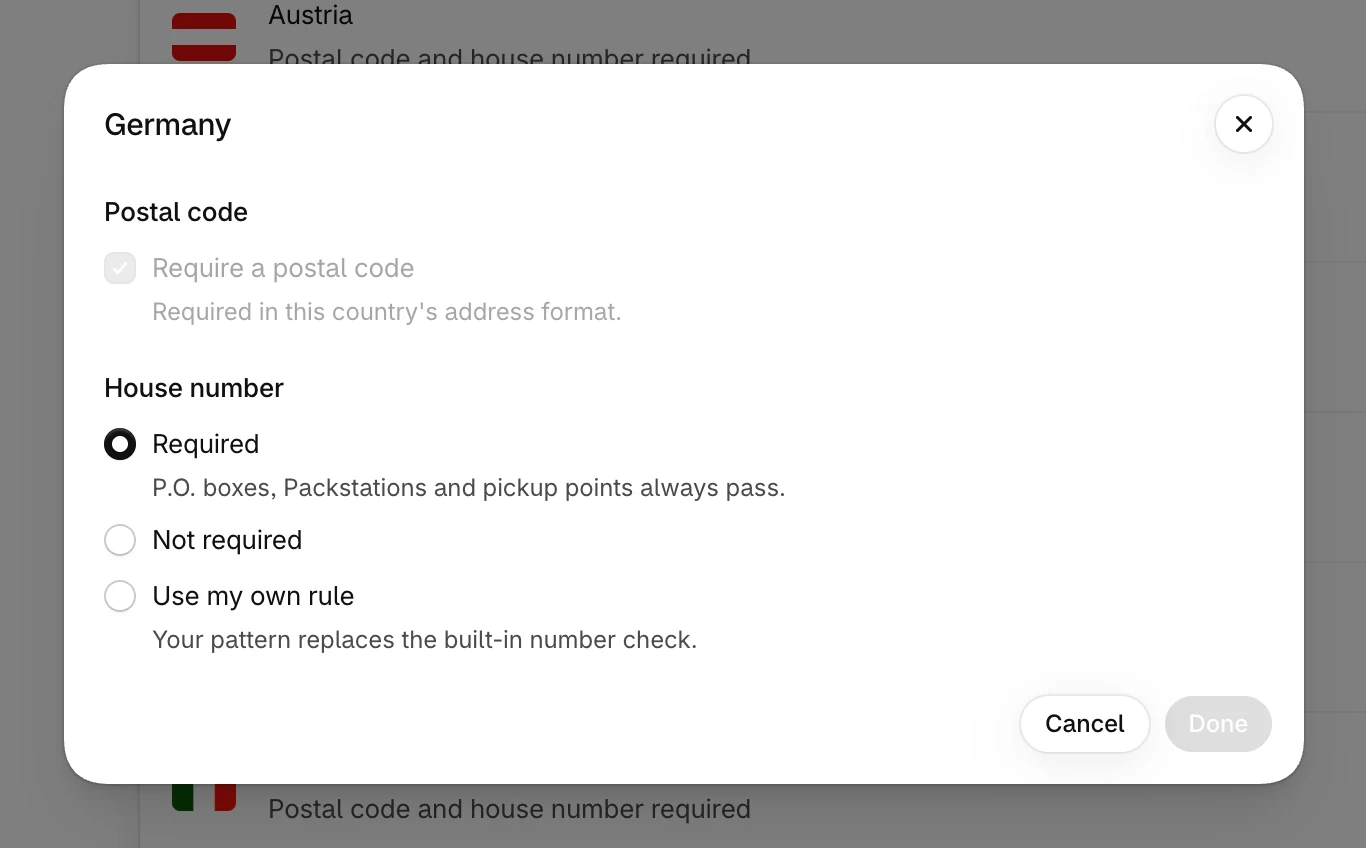
- Postal code
Turn on Require a postal code. You can do this only where the country uses postal codes but doesn't require them.
- House number
- Choose Required, Not required or Use my own rule.
- 3
Save
Select Done, then Save in the bar at the top. Checkout uses the new rule after you save.
To undo your changes for a country, open it and select Use the default, then Save.
Your own rule
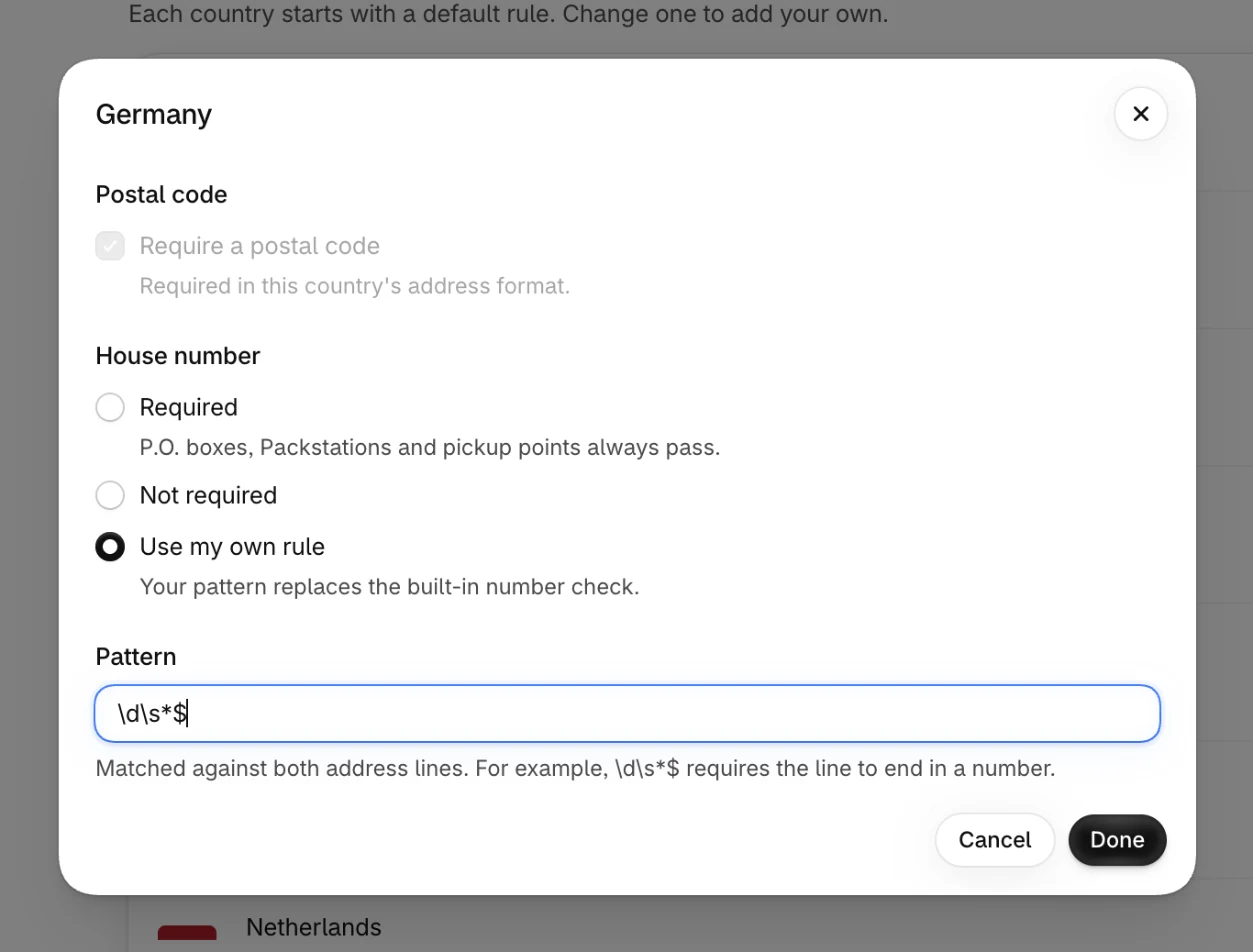
Use my own rule replaces the built-in digit check with your own pattern. A pattern is a JavaScript regular expression. It's matched against address line 1 and line 2 separately, and the address passes when either line matches. It's case-sensitive, and parcel lockers and P.O. boxes still pass without matching.
| Pattern | The line passes when it |
|---|---|
\d\s*$ | ends in a number |
^\d | starts with a number |
\d{2,} | contains a number with at least two digits |
\d matches only the digits 0 to 9, so a pattern is stricter than the built-in check for addresses in other scripts.
If a pattern isn't valid, the editor shows an error and Done stays unavailable until you fix it.